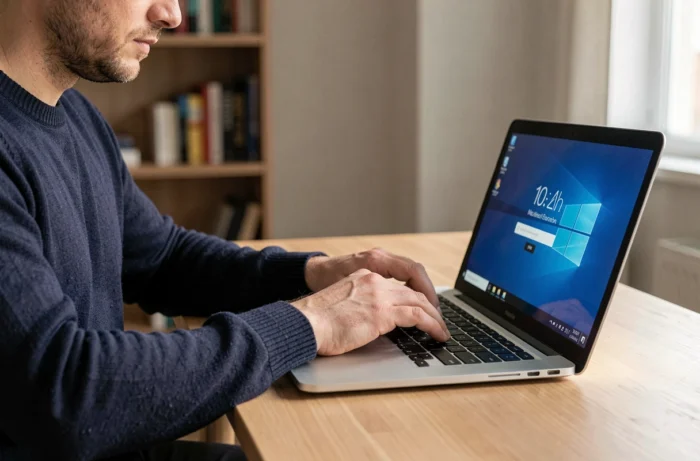
You turn on a PC running Windows, type in your password, and a window pops up asking you to create a PIN. The temptation to click “ignore” is strong. This Microsoft PIN, often confused with a simple bank PIN, serves a very different security role than a traditional password.
Windows Hello PIN: a secret that never leaves the machine
The most common misunderstanding concerns the very nature of this PIN. One imagines a four-digit PIN that travels through Microsoft’s servers, like a shortened password. The technical reality is the opposite.
The PIN remains stored locally on the device. It is used to unlock a cryptographic key tied to the hardware (the PC’s TPM chip), not to authenticate directly with Microsoft’s servers. In practical terms, if someone intercepts this PIN over the network, they can do nothing with it without physical access to the machine.
This architecture explains why Windows insists so much on configuring it. The Microsoft account password, on the other hand, travels over the Internet with every login. Understanding the functioning of the Microsoft PIN helps to grasp why it is more resistant to phishing attacks than a password, no matter how long it is.
Moreover, you can choose a PIN that is not limited to numbers. Windows Hello accepts letters, special characters, and alphanumeric combinations. The term “PIN” is misleading: it is closer to a local password than a credit card code.

Microsoft PIN and password: what changes in case of an attack
A password stolen during a data breach grants access to the account from any device in the world. This is the classic scenario of large-scale hacks.
The PIN does not present this risk. Even if exposed, it is unusable without the physical machine to which it is tied. The difference can be summarized in one line: a password protects an account, a PIN protects a device.
This distinction has practical implications for businesses. In a professional environment managed by Microsoft Entra (formerly Azure AD), Windows Hello for Business treats the PIN as a strong authentication factor. It is even considered a self-registered passkey in certain scenarios, which may eliminate the need for a separate second factor.
Limitations to keep in mind
The PIN does not replace all layers of security. If the device is lost and the PIN is too short (simple four-digit numbers, for example), physical access combined with brute force remains theoretically possible, even if the TPM chip limits the number of attempts.
Feedback on this point varies depending on hardware configurations: not all PCs have a recent TPM chip, and on older machines, the protection is less robust.
Setting up and resetting the Windows Hello PIN
Creating the PIN is done through the Windows settings. Here are the concrete steps:
- Open Settings, then Accounts, then Sign-in options (on Windows 11, the section is called “Windows Hello PIN”).
- Click on Add, then first enter the Microsoft account password to verify your identity.
- Choose a PIN, optionally checking the box “include letters and symbols” to enhance security.
For resetting, two scenarios arise. If you have forgotten the PIN but still have access to the Microsoft account, the “I forgot my PIN” option in the sign-in settings allows you to recreate it after identity verification. If access to the account is also blocked, you must go through the Microsoft account recovery procedure itself.
Passkeys and the end of SMS: where Microsoft is directing its users
The Windows Hello PIN is part of a broader strategy. Microsoft is gradually shifting towards passkeys as the default login method, both for personal accounts and for business accounts managed by Entra ID.
At the same time, verification codes via SMS and voice calls are being phased out for certain business scenarios. A transition timeline has been communicated, with an announced end to these phone methods in the Entra ecosystem.
This movement has a clear technical logic:
- SMS are vulnerable to SIM swapping, making them an increasingly criticized authentication factor.
- Passkeys, like the Windows Hello PIN, rely on device-linked asymmetric cryptography, with no shared secret with a remote server.
- Windows 11 has also removed the picture password option to push users towards the PIN, traditional passwords, and biometrics.
The PIN is therefore not a temporary relic. It forms the foundational building block of local authentication in the Microsoft ecosystem, the one that unlocks the passkey or Windows Hello key stored in the hardware.
Xbox PIN: a different use, the same logic
On Xbox, the PIN serves a distinct but complementary role. It protects the profile from accidental purchases and unauthorized access by other household members. This six-digit code prevents a child or guest from validating a purchase without permission.
Management is done from the console settings (General, then Online Safety & Family). You can create, modify, or delete it at any time. The principle remains the same as the Windows Hello PIN: a local lock, tied to the console, not to the Microsoft account itself.
The Microsoft PIN, whether it protects a PC or an Xbox, is based on the same idea: keeping the secret on the device rather than on a server. With the gradual disappearance of verification SMS and the rise of passkeys, this local mechanism is becoming the foundation of authentication at Microsoft, not an optional gadget to be ignored at first startup.